
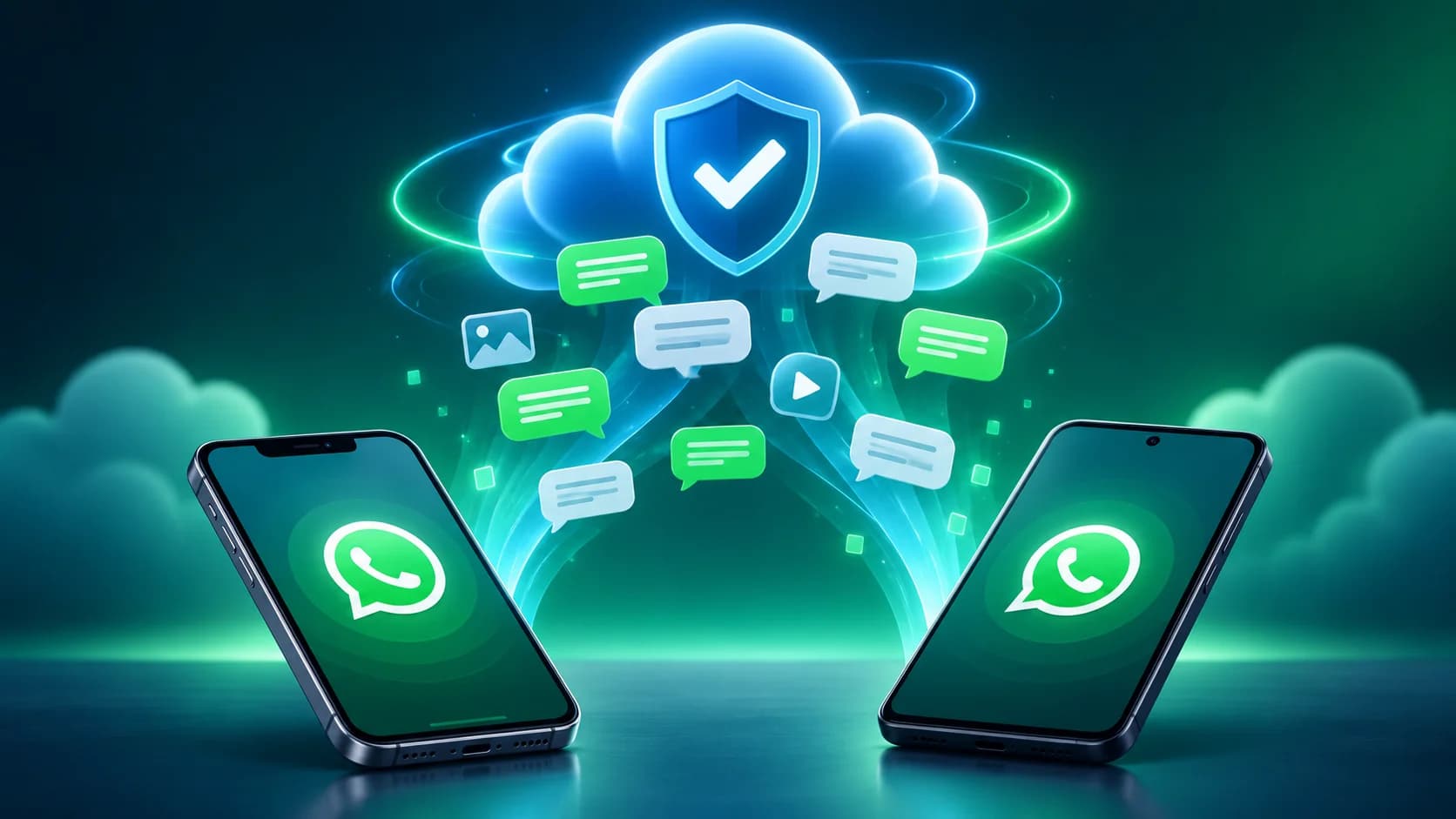
How to Back Up WhatsApp Chats (iPhone and Android)

Mahmud Hasan
November 6, 2026
WhatsApp doesn't keep your chats. Your messages live on your phone, and if the phone dies, gets stolen, or you switch to a new one without a backup, years of conversations go with it. Learning how to back up WhatsApp chats takes about two minutes — but the defaults leave two holes most people never notice: the backup isn't encrypted, and it can quietly expire.
Back up WhatsApp chats on Android: Google Drive
On Android, WhatsApp backs up to your Google Account. Open WhatsApp, tap the three dots, then Settings > Chats > Chat backup. Tap Back up for an immediate copy, and pick a Google Account if you haven't already. Then set the frequency — Daily is the right choice for most people; it runs every night after the phone makes its local copy.
Two toggles matter. Include videos in chats decides whether your backup is a few hundred megabytes or several gigabytes — videos are usually the bulk of it.
Back up using cellular should stay off: a multi-gigabyte backup over mobile data is an expensive accident. WhatsApp warns backups "can vary in size and might use mobile data" — connect to Wi-Fi first.
One thing the backup screen won't tell you: since early 2024, your WhatsApp backup counts against your Google Account's 15 GB of free storage, shared with Gmail, Drive, and Photos. Google exempted WhatsApp backups for five years, then reversed the deal in December 2023 — if your Gmail is already near its limit, the backup can fail silently for lack of room.
Back up WhatsApp chats on iPhone: iCloud
On iPhone, the path is Settings > Chats > Chat Backup, then Back Up Now for an immediate copy or Auto Backup for a daily, weekly, or monthly schedule. Same advice: daily, videos off if space is tight.
iPhone has a quirk worth knowing. WhatsApp wants free space on iCloud and on the iPhone of at least 2.05 times the backup size — the phone needs room to build it before uploading. A backup reporting "not enough space" may mean the phone, not iCloud, is full. And iCloud's free tier is only 5 GB, shared with your photos and your iPhone's own device backup.
There's a newer option on iPhone too: WhatsApp is rolling out its own backup provider — WhatsApp cloud storage — as an alternative to iCloud, selectable under Chats > Chat backup > Cloud backup. It's always end-to-end encrypted, with 2 GB free, and you can't use both providers at once. If you don't see it yet, iCloud remains the way.
Turn on end-to-end encrypted backup before you need it
Here's the hole in the default setup: a standard backup to Google Drive or iCloud is not protected by WhatsApp's end-to-end encryption. The chats are encrypted in transit and at rest, but Google or Apple holds the keys — a subpoena or a breached account can expose them. The fix is one toggle, and almost nobody turns it on.
Go to Settings > Chats > Chat backup > End-to-end encrypted backup and tap Turn on. You lock it with a passkey (your fingerprint or face), a password you create, or a 64-digit encryption key WhatsApp generates for you. Passkeys are the newest option — added in late October 2025 — and the easiest to live with, since there's nothing to write down or forget. If you want the full trade-off between passkeys and passwords, the honest answer is that the recovery path, not the login, is your real security level.
One warning, and it's absolute: lose the password or key and lose access to WhatsApp, and the backup is gone for good — WhatsApp can't reset it. The escape hatch: while you still have WhatsApp access, you can change the password or turn encryption off and on again. So turn encryption on while your phone is in your hand, not after it's in a repair shop. Five wrong attempts also lock you out for a waiting period — don't guess at it.
One side effect on iPhone: once encrypted backup is on, your chat history is excluded from the iPhone's own device backup — don't count it as a second copy of your chats.
The restore trap: your backup only knows the past
Restoring is where most people discover what a backup actually is. There is no restore button in Settings — the only way is to reinstall WhatsApp, verify the same phone number, and tap Restore when setup offers it, using the same Google Account or iCloud account the backup was made on.
And a restore only brings back what existed at the last successful backup. Anything sent or received after that is gone, and you cannot merge old and new history — WhatsApp says so plainly. If WhatsApp is already active on your new phone and you start chatting, the only way back is to wipe the app and start over. Worse: if you skip the restore and start backing up on the new phone, the new backup replaces the old one. The safety net deletes itself.
The practical rule: restore before you send a single message on the new phone, and run a manual backup on the old phone right before you switch.
Two ways your backup can quietly disappear
The first is Google's five-month rule. WhatsApp backups that haven't been updated in five months may be automatically deleted from Google Drive — Google's own support pages say so, and a deleted backup is unrecoverable. That old phone in a drawer, the one whose chats you meant to keep? Its backup has an expiry date. If you keep a spare phone, open WhatsApp on it every few months and let it back up, or accept that the copy is gone.
The second is storage. On Android, the 15 GB free tier is shared with Gmail and Photos, so a video-heavy backup competes with your inbox. On iPhone, 5 GB of iCloud is shared with everything Apple backs up. The lever is the same on both: turn off Include videos and your backup shrinks dramatically. Videos are almost never the messages you need to recover; the text is.
WhatsApp's own cloud storage: the 2026 alternative
The newest option sidesteps both providers: WhatsApp cloud storage backs up directly to WhatsApp, always end-to-end encrypted, with 2 GB free. It appears in the backup settings as a provider choice — WhatsApp or Google/iCloud — and you pick one, not both. WhatsApp's help pages warn that backups left untouched for more than 120 days may not restore, so the same "check it occasionally" discipline applies. Paid tiers are still in flux and unconfirmed, so treat the 2 GB figure as the honest one for now.
Do it today, in two minutes
Open WhatsApp, go to Settings > Chats > Chat backup, and check three things: when the last backup ran, whether it's daily, and whether encrypted backup is on. If the last backup is older than today, tap Back up (Android) or Back Up Now (iPhone) right now. Then turn on end-to-end encrypted backup while your phone is in your hand. While you're securing your accounts, check whether your password has already been leaked — a backup protects your chats, but the account holding them needs a safe password too.
Cloud backups don't cross platforms: an iCloud backup can't restore to Android, and a Google backup can't restore to iPhone. Switching sides needs the transfer tools — Move to iOS one way, Move Chats to Android the other — only during the new phone's initial setup, before WhatsApp is activated. That's a separate job; get the backup right first.
References
- WhatsApp Help Center, "How to back up your chat history" (iPhone)
- WhatsApp Help Center, "How to back up your chat history" (Android)
- WhatsApp Help Center, "How to restore your chat history"
- WhatsApp Help Center, "Can't remember password for encrypted backup"
- WhatsApp Help Center, "How to move chats from an Android device to an iPhone"
- Google Workspace Admin Help, "Turn Third-party App Backups on or off" (5-month deletion rule)
- 9to5Google, "WhatsApp backups will soon count against your Google account storage" (14 Nov 2023)
- TechCrunch, "WhatsApp adds passkey protection to end-to-end encrypted backups" (30 Oct 2025)
- GetKanal, "WhatsApp Backup: How to Back Up and Restore Your Chats"
Comments
More in Cybersecurity

How to Take a Screenshot on Windows 11: Every Method
How to take a screenshot on Windows 11: every method, where each file actually lands, and what to do when the Print Screen key does nothing at all today.
Read more
What Is Rendezvous and Proximity Operations? (Cosmos 2612)
What is rendezvous and proximity operations? Cosmos 2612 flew one against a US satellite, closing to 500 meters — the closest unconsented rendezvous ever seen.
Read more
Is the AI Bubble About to Burst? The Honest 2026 Answer
The IMF just put a number on the AI-bubble debate: an investment bust could shave roughly a point off global GDP by 2028. This week gave both sides fresh ammunition — here is the honest middle.
Read more