
How to Take a Screenshot on Windows 11: Every Method

Mahmud Hasan
November 13, 2026
Windows 11 has at least six ways to take a screenshot, and most people know exactly one of them — usually the wrong one for the job. The result: you press Print Screen, nothing seems to happen, and the image you needed sits in the clipboard until the next thing you copy overwrites it. This guide covers every method, where each one puts the file, and what to do when the key does nothing at all.
How to take a screenshot on Windows 11 with Win + Shift + S
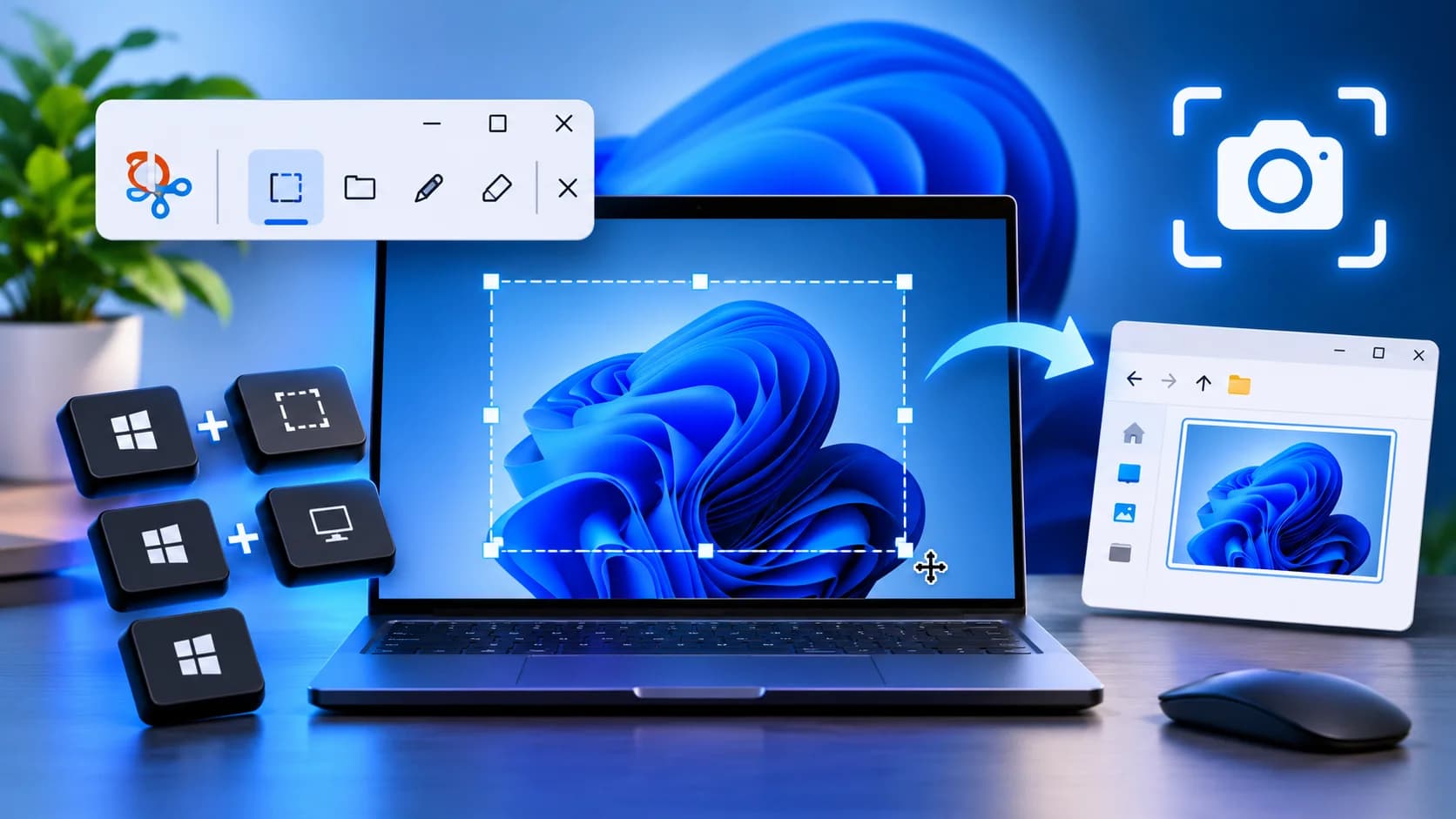
Press Win + Shift + S and the screen dims with a toolbar at the top. This is the method to learn first, because it does the most with the fewest surprises.
The toolbar offers four modes. Rectangle is the default: drag a box around whatever you want. Window captures one app window when you click it — no taskbar, nothing behind it. Full screen grabs everything. Freeform lets you draw any shape. The moment you finish, the capture is on your clipboard, so Ctrl + V pastes it into whatever you're writing.
A notification appears in the corner. Click it and the screenshot opens in Snipping Tool, where you can draw on it, crop it, or save a copy. With Snipping Tool's automatic saving on — the default — the file also lands in Pictures > Screenshots. Turn it off in Snipping Tool's settings if you'd rather captures lived only on the clipboard.
Win + PrtSc: the one that actually saves a file
If you want a file and nothing else — no selection, no notification, no editor — press Win + PrtSc. The screen dims to confirm it worked, and a PNG of the whole screen is saved to Pictures > Screenshots. It's the best choice when you need several screenshots in a row, for example while stepping through an error message that changes at every step.
Two details catch people out. On a multi-monitor setup it captures all displays, so crop afterwards if you only wanted one. And the mouse pointer never appears in screenshots, so a tooltip hover won't capture.
What the Print Screen key does now — and why yours does nothing
Here's the change behind most of the confusion. On current Windows 11, pressing PrtSc on its own opens the same Snipping Tool overlay as Win + Shift + S. Microsoft flipped that default in a mid-2023 update, and Digital Trends' guide — verified on Windows 11 25H2 — confirms it is still the default.
But the old behaviour is one toggle away. If the toggle is off, PrtSc silently copies the entire screen to the clipboard: no sound, no preview, no file. It looks exactly like the key is broken. To choose, open Settings with Win + I, go to Bluetooth & devices > Keyboard on recent builds (on older builds it's under Accessibility > Keyboard), and switch "Use the Print screen key to open screen capture" on or off.
Laptops add one more trap. On many of them Print Screen shares a key with something else, so you need Fn + PrtSc — or an Fn Lock key that switches the top row. If your keyboard has no Print Screen key at all, Microsoft's own guidance is Fn + Win + Space.
One more culprit: OneDrive, Dropbox, Snagit, and ShareX can all claim the PrtSc key, so Windows never sees the press. If the key worked yesterday and doesn't today, check those apps before blaming the keyboard.
Where screenshots are saved, and why yours aren't there
Finding the file afterwards is the hard part. The rules:
- Win + Shift + S or PrtSc (overlay): clipboard, plus Pictures > Screenshots if Snipping Tool's automatic saving is on.
- Win + PrtSc: always a file, in Pictures > Screenshots.
- Alt + PrtSc: active window only, clipboard only, never a file. Paste it somewhere or it's gone.
- Win + Alt + PrtSc (Game Bar): saved to Videos > Captures.
- Win + Shift + R (Snipping Tool recording): saved to Videos > Screen Recordings.
Two gotchas. If Pictures is backed up to OneDrive, Screenshots lives inside OneDrive > Pictures instead — that's where "missing" screenshots usually are. And clipboard-only captures are one copy away from being lost: copy a link, and the screenshot is gone. Turn on clipboard history (Win + V) and you can paste an earlier capture back.
Want a different home? Snipping Tool's settings change its save folders; for Win + PrtSc, right-click the Screenshots folder, choose Properties, and move it on the Location tab.
Three things Windows still can't screenshot — and the workarounds
Scrolling pages. Snipping Tool cannot capture a long page in one image, and no toggle fixes that. For web pages, the browser does it: in Edge, press Ctrl + Shift + S and choose "Capture full page"; in Chrome, open DevTools (Ctrl + Shift + I), press Ctrl + Shift + P, type "screenshot", and choose "Capture full size screenshot" — it lands in Downloads. For long documents outside a browser, you need a third-party tool, or you record the screen while you scroll.
Menus and tooltips that vanish when you press a key. Win + Shift + S always captures immediately, which can't catch a dropdown that closes the moment you touch the keyboard. Open the Snipping Tool app from the Start menu instead, pick a delay of 3, 5, or 10 seconds, press New, then open the menu and wait. When the delay runs out, the screen freezes and you select the area as usual.
Streaming video that screenshots as a black rectangle. That's not a bug. Streaming services block screen capture on their own content, so the video area comes out black while the rest of the screen captures fine. Nothing in Windows settings changes it.
Which method for which job
Most of the time the choice is one of two. Use Win + Shift + S when you need a specific part of the screen and you'll paste it immediately — a chart into a chat, a settings page into an email. Use Win + PrtSc when you want a file you can find later, especially a sequence of them.
Use Alt + PrtSc when you're sending someone a picture of a dialog box — a CORS error, a failed deploy, an app's settings page — and nothing else in the frame matters. For a bug report, capture the error and the context: the Network tab in DevTools next to the error tells the reader where the problem lives, which a cropped dialog never does.
For anything you plan to share publicly, open the capture in Snipping Tool first. The editor's pen and shapes are fine for circling the problem, but the feature worth knowing is Text actions: it reads the text in your screenshot, and Quick redact hides email addresses and phone numbers before you share it. It runs on your PC and takes seconds — the difference between a useful screenshot and an accidental data leak.
That's the whole system: Win + Shift + S for parts, Win + PrtSc for files, the Print Screen toggle when the key seems dead. The screenshot is the easy part; knowing where it went is the skill.
References
- Microsoft Support — Use Snipping Tool to capture screenshots
- Microsoft Windows — How to use Snipping Tool on Windows 11
- Digital Trends — Every way to take a screenshot on Windows 11 (and when to use each one)
- Applio Blog — How to screenshot on Windows 11 (every method)
- The Tech Gorilla — How To Take Screenshot On Windows 11
- Windows Forum — Windows 11 Print Screen Shortcuts: Capture & Snipping Tool
Comments
More in Technology

What Is Rendezvous and Proximity Operations? (Cosmos 2612)
What is rendezvous and proximity operations? Cosmos 2612 flew one against a US satellite, closing to 500 meters — the closest unconsented rendezvous ever seen.
Read more
Is the AI Bubble About to Burst? The Honest 2026 Answer
The IMF just put a number on the AI-bubble debate: an investment bust could shave roughly a point off global GDP by 2028. This week gave both sides fresh ammunition — here is the honest middle.
Read more
The Leap Second Is Dead: Why 69 Countries Voted to Abolish It
On October 15, 69 countries voted to abolish the leap second, effective May 2027. The real reason isn't the crashes of 2012 and 2017 — it's the negative leap second, a second that goes backward, that no computer has ever had to survive.
Read more