How to Choose a Website Color Palette That Passes Contrast

Mahmud Hasan
October 26, 2026
Most guides on how to choose website color palette shades start with a color wheel. Start with a contrast checker instead. A palette that looks beautiful in a design tool and fails on real text is not a palette — it is a rework waiting to happen. The fix is unglamorous and takes about twenty minutes: pick one brand color, build tinted neutrals around it, and test every text pair against the WCAG numbers before you ship.
I did exactly that for a sample palette this week, and two of the most tempting combinations failed. The bright brand shade everyone reaches for first scored 2.49:1 as text on white. The medium gray that looks like perfect secondary text scored 2.54:1. Both would have shipped if I had trusted my eyes.
How to choose website color palette pairs, contrast first
WCAG 2.2 sets the bar in Success Criterion 1.4.3: normal text needs a contrast ratio of at least 4.5:1 against its background, and large text — 18 point or 14 point bold, roughly 24 pixels or 18.66 pixels bold in CSS — needs 3:1. Level AAA raises those to 7:1 and 4.5:1. A separate criterion, 1.4.11, requires 3:1 for non-text elements like input borders, focus indicators, and meaningful icons. Text in logos and purely decorative text are exempt. Everything else you expect people to read is not, including the quiet helper text under a form field and the timestamps you think of as minor.
The ratio itself comes from relative luminance, not from how different two colors look on a wheel: (L1 + 0.05) / (L2 + 0.05), where L1 is the lighter color's luminance. Green light counts for far more than blue in that calculation, which is why two colors can look obviously different and still fail, or look similar and pass. Eyeballing is not a method.
One brand color, tinted neutrals, nothing else
A working palette has roles, not just colors. You need a background, an ink color for body text, a muted color for secondary text, one brand color, and status colors for success, warning, and error states. That is it. Every extra hue is another set of pairs to test.
Start with the brand color you already have — from a logo or a client's existing materials. Then build the neutrals by tinting gray slightly toward that brand hue, so the grays feel like part of the same family instead of a separate gray system bolted on. Pure black on pure white scores the maximum 21:1, but it is harsh for long reading; a very dark warm gray on a warm off-white is easier on the eyes and still clears the bar by a wide margin.
Assign each color exactly one job. The brand color is for links and primary buttons, not also for headings, icons, and decorative flourishes. When one color means one thing, you only have to test a handful of pairs.
The worked example: a teal palette, tested
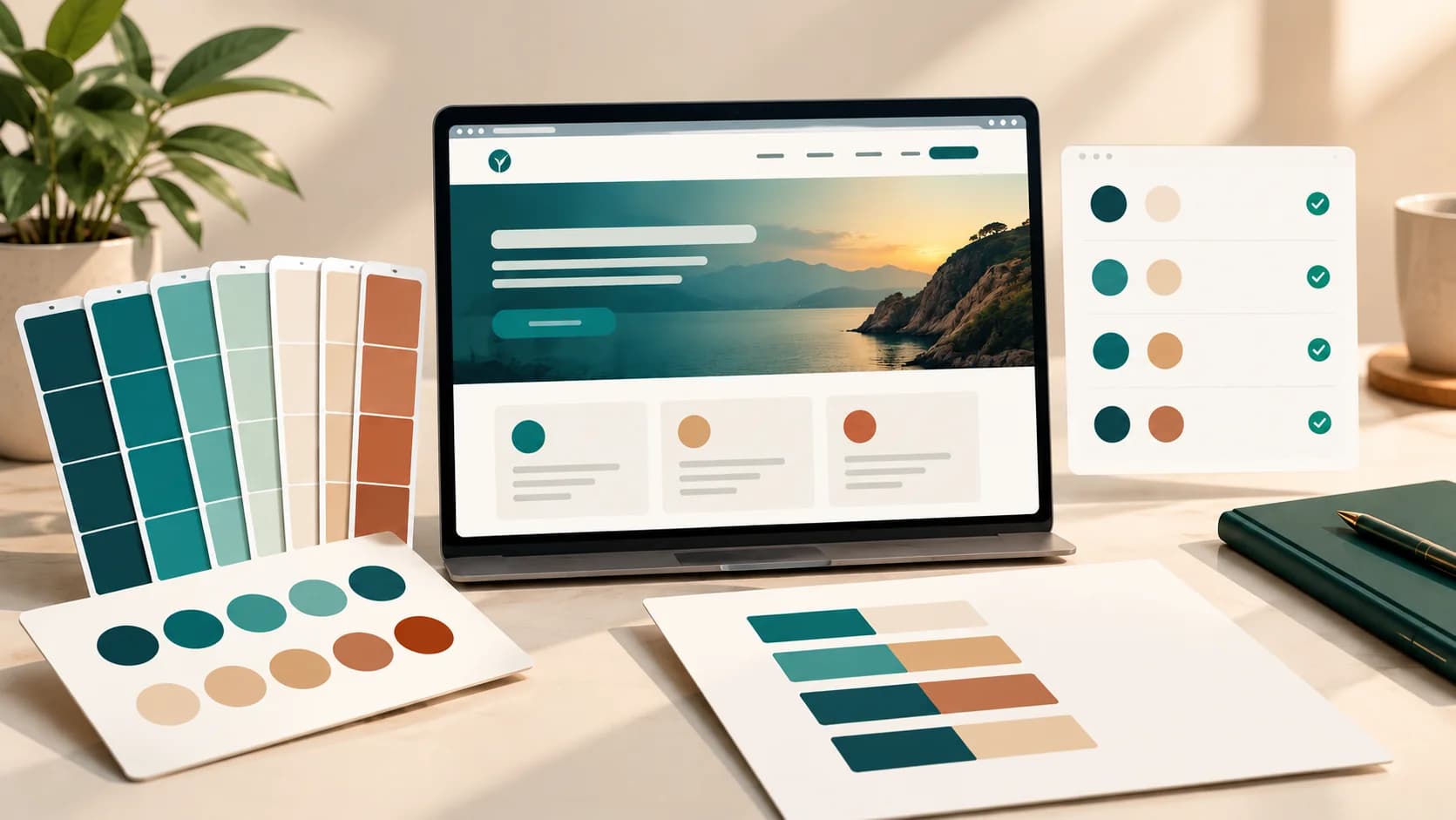
Here is the sample palette I built and ran through the WCAG formula, with one pair cross-checked against WebAIM's checker (it returned exactly 5.02:1):
- Background: warm off-white #F7F5F0; body ink #1C1917 — 16.05:1, passes AA easily.
- Secondary text #57534E on the same background — 7.00:1, passes AA and even AAA for normal text.
- Brand teal #0F766E as link text on the background — 5.02:1, passes AA.
- White button text on the brand teal — 5.47:1, passes AA.
- Dark section background #134E4A with #FAFAF9 text — 9.07:1, passes AA and AAA.
- Warning amber #B45309 on white — 5.02:1, passes AA. Error red #DC2626 on white — 4.83:1, passes AA.
And the failures — the interesting part:
- The brighter brand shade, teal #14B8A6, as text on white — 2.49:1. It fails even the 3:1 large-text bar. White text on that same shade scores the identical 2.49:1, so it fails as a button too.
- Medium gray #9CA3AF as secondary text on white — 2.54:1. Also fails. This is the single most common failure I see in the wild: gray that reads fine on a designer's calibrated monitor and melts on a phone in sunlight.
- A light stone border #D6D3D1 on the warm background — 1.37:1, which fails even the 3:1 non-text bar for input borders. A darker stone #A8A29E still only reaches 2.31:1. The border that actually clears the non-text bar is stone #78716C at 4.40:1. Borders need testing too, and they need darker grays than your instincts suggest.
The lesson is not that teal is a bad brand color. It is that a brand color has shades, and the shade you use for large decorative areas is rarely the shade you should use for text. Keep the bright shade for illustrations, large blocks, and the logo — where no contrast rule applies — and use the darker step for anything people read.
Beyond the failures above, four traps show up again and again. First, placeholder text and helper copy: designers treat them as less important, but WCAG makes no such distinction — if it is real text users are meant to read, it needs 4.5:1. Second, text over images: the ratio is judged on the worst patch of image behind the text, not the average, so a photo that is mostly light with one dark streak fails where the streak crosses the words. Third, links identified by color alone: WebAIM's guidance is that a link needs 3:1 against the surrounding body text unless it is underlined, in addition to 4.5:1 against the background. Underlining your links is the cheapest way out of that whole problem. Fourth, hover and focus states: a button that passes at rest and fails on hover is still a failure, so test the states, not just the default.
What contrast can't tell you
A passing ratio is necessary, not sufficient. The formula ignores hue entirely, so a red and a green that clash badly for a color-blind reader can still pass 4.5:1. Never use color as the only signal: errors need text and an icon, not just a red outline; required fields need a marker, not just a colored asterisk. And the standard itself is moving — the newer APCA algorithm, which models perceived contrast differently from the WCAG 2.x formula, is the direction of travel for future guidelines. If you want the details, I wrote up how OKLCH and APCA change the contrast math and why HSL's lightness numbers mislead you.
Your twenty-minute checklist
- Write down the palette as roles: background, ink, muted, brand, success, warning, error.
- Test every text pair you will actually ship: body, secondary, links, button text, text on dark sections, status text. Record the ratios in a table you keep with the design tokens.
- Test the states: hover, focus, disabled (disabled is exempt, but only while the control stays disabled).
- Test the borders and focus indicators against the 3:1 non-text bar.
- Fix failures by darkening the text step or lightening the background step — never by shrinking the font or hoping the text counts as "large."
- Then pair the palette with type: the body-font-first checklist for pairing typefaces keeps the typography as disciplined as the color.
The prettiest palette is not the one with the most interesting colors. It is the one where every pair was tested and the failures were found before launch. Your brand color survives the process — it just has to earn its place as text, one shade darker than you first picked.
References
Comments
More in Design & Creativity

What Is Rendezvous and Proximity Operations? (Cosmos 2612)
What is rendezvous and proximity operations? Cosmos 2612 flew one against a US satellite, closing to 500 meters — the closest unconsented rendezvous ever seen.
Read more